

Farol: Watching the desktop lamp of the Paseo agent for you200188
Watch the desktop lights of the coding agents in Paseo for you: a glance reveals their status, you can respond to or stop them on the board, and you can also start a new session with voice.
Farol is a lamp placed on a desk that watches the coding agents in Paseo for you, running on an ESP-Mosaico development board. A glance tells you how the agents are doing; without opening the Paseo App, you can answer their questions on the board, stop a round that is running, or start a new session with voice.
Farol consists of two parts: firmware on the board, and a Farol plugin installed on the Paseo daemon. The plugin organizes Paseo’s state and sends it to the board, and performs the actions you make on the board. The source code, build instructions, and updates are on GitHub: https://github.com/gtoxlili/farol.
Real‑device demo video (silent): ask a question with voice, hold the send button, and the new session runs until it provides an answer. The other screenshots on this page come from the simulator bundled with the project, and the display is the same as on the board.

What it does
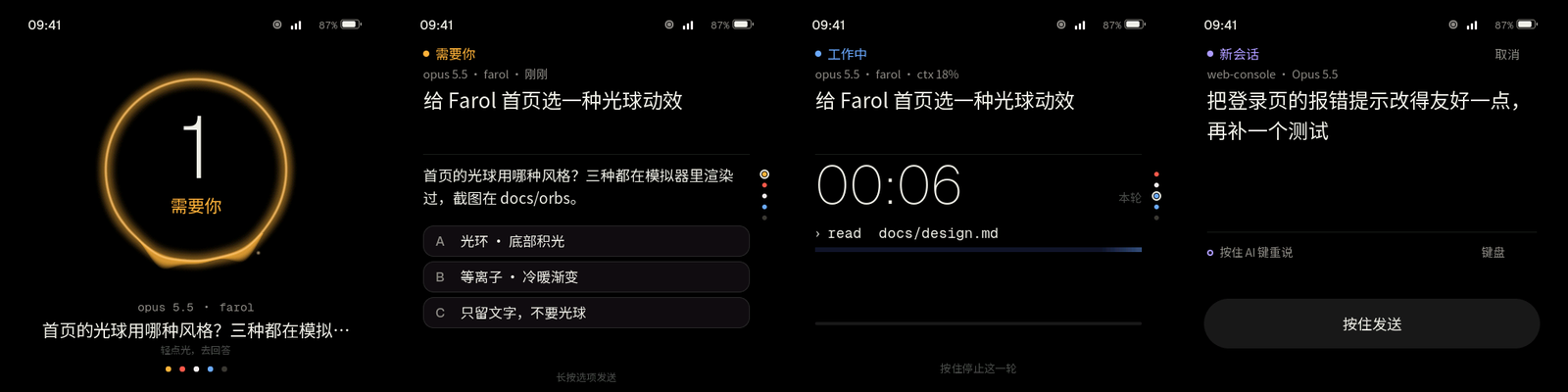
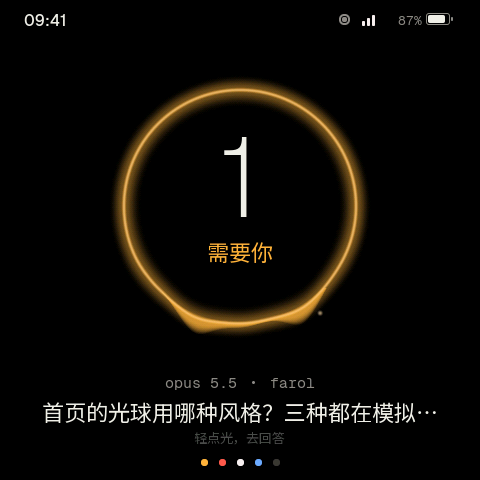
- The light reflects the status of all agents. When they are working it is a cool color, breathing slowly; when an agent is waiting for you it turns amber; when a round fails it turns red. The brightness follows the most constrained usage quota.
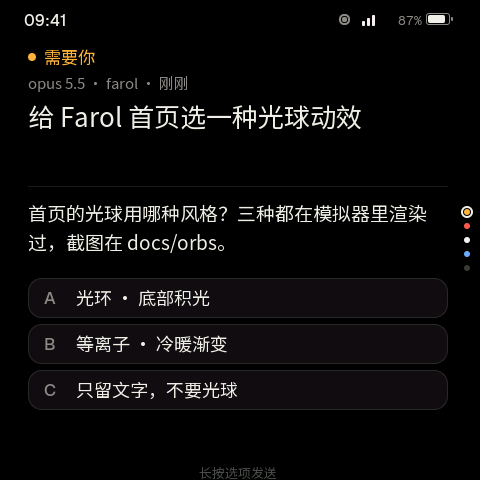
- One agent per card. Behind the light is a stack of cards. Holding an option lets you answer a question, permission request, or plan; holding a running card stops that round.
- Start a new session with voice. Hold the AI button and speak; Paseo’s own voice input turns your speech into the first message, and holding “Send” starts it. You can also type with the board’s keyboard (letters only).
- Chinese and English. Both the board and the plugin have Chinese and English, defaulting to the language of the Paseo App.

Required hardware and software
- An ESP-Mosaico development board.
- Camera module, inserted into the left slot: used to scan the Wi‑Fi QR code and Paseo’s pairing code.
- Interaction module, inserted into the right slot, optional: when attached, the screen lights up with presence, adjusts brightness according to ambient light, and the LED also shows the lamp’s status.
- A 2.4 GHz Wi‑Fi network.
- A computer running the Paseo daemon: Paseo 0.14 or newer, with the plugin enabled. To start sessions with voice, configure voice input in Paseo.
Installation
The firmware version released this time is 1.0.0. Installation is in two steps; the exact commands are in the repository’s Chinese instructions.
- Firmware. When building from source, place the repository in the ESP-Mosaico workspace under
projects/farol, and use the workspace’smosaico.pyto build and install it onto the board. The camera driver requires a patch to ESP‑IDF; an unpatched ESP‑IDF will cause the build to stop. See the development notes (English) for how to apply the patch. - Paseo plugin. On the computer running the Paseo daemon, install Farol from Paseo’s plugin directory, and after installation verify that it is enabled in Paseo’s plugin list.
Connection
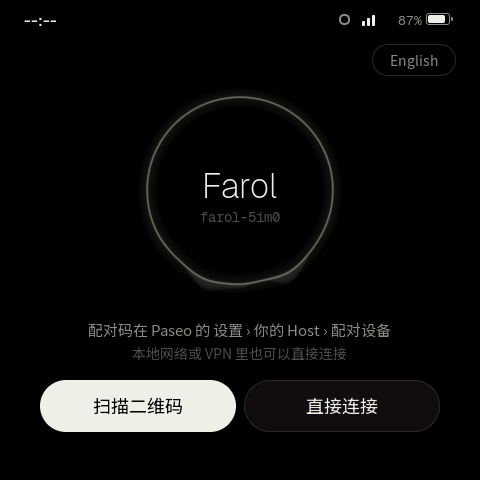
- Connect to Wi‑Fi. On the board’s “Not connected to Wi‑Fi” page, scan the QR code displayed in the phone’s Wi‑Fi settings, or select a network and enter the password.
- Connect to Paseo. Same methods as adding a connection in the Paseo App, choose one:
- Scan QR code (encrypted relay): In Paseo open Settings › Your Host › Pairing Devices, and scan the displayed code with the board. Afterwards the board can connect over any network, with end‑to‑end encryption to the daemon.
- Direct connection (local network or VPN): fill in Host, port (default 6767 if left blank), whether to use SSL, and the daemon password.
- The board will first display which Paseo it will connect to; tap “Connect”. If the daemon has a password but the pairing code does not include it, the board will ask for the password again.
Usage
| Where | Gesture | Result |
|---|---|---|
| Anywhere | Swipe left/right | Quota, light, card stack |
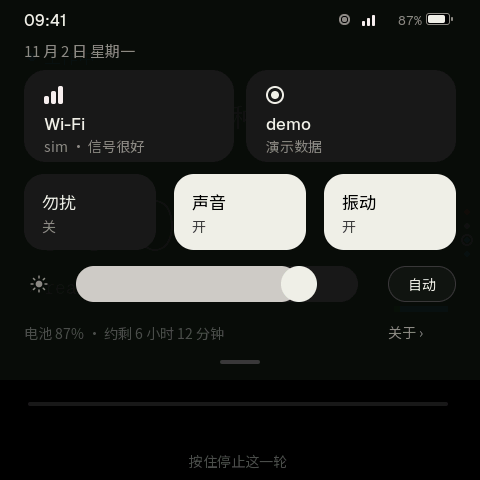
| Anywhere | Pull down from top | Control Center: Wi‑Fi, Paseo, Do Not Disturb, sound, vibration, and brightness |
| Light | Tap | The most urgent card |
| Light | Hold | New session, then hold the light to speak |
| Card stack | Swipe up/down | Next agent, most urgent first |
| Question card | Hold an option for 0.5 s | Answer with that option |
| Running card | Hold for 1.2 s | Stop this round; releasing early cancels |
| Completed card | Tap “Read” | Card leaves the stack; it returns when the agent starts a new round |
| AI button | Single tap | The most urgent card, tap again to return to the light |
| AI button | Hold | Speak, release to glance at the text, hold “Send” |
| Board | Clip on and place | Do Not Disturb while clipped |
A tap never modifies an agent; only a hold does.
Start a session with voice: Hold the AI button and speak; the light turns purple, pulsing with your voice. After releasing, Paseo converts the speech to text and displays it as the future card of the new session. Hold “Send” until the bar fills, and the new session starts. To redo, hold the AI button again. The new session is opened in the workspace selected in the plugin settings, using the agent configuration chosen there.
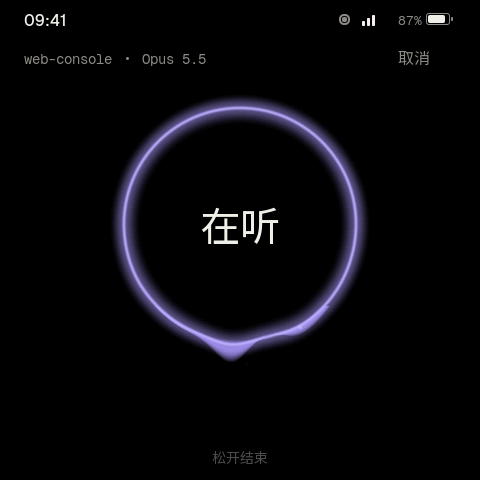
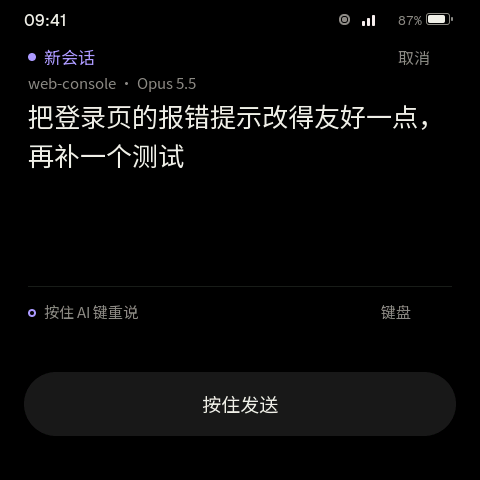
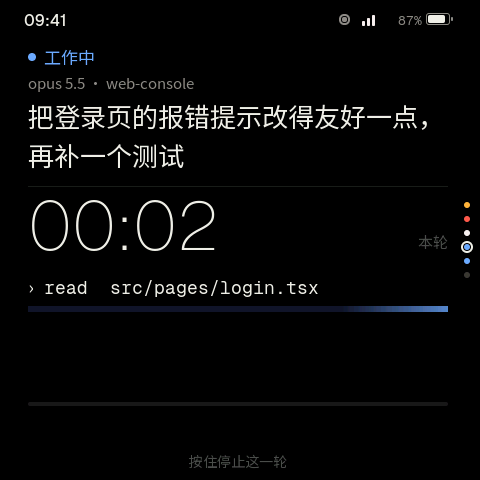
Other pages: The quota page lists usage for each service; the control center lets you adjust sound, vibration, brightness, and Do Not Disturb.
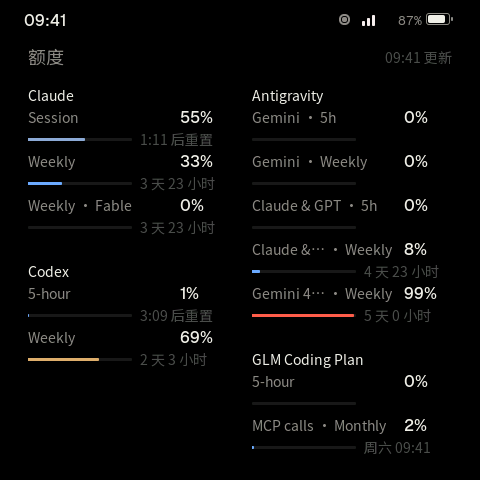
Plugin settings
In Paseo open Settings › Plugins › Farol:
- Recently connected boards and their firmware versions, as well as each board’s own sound, vibration, and brightness settings.
- The workspace and agent configuration used by the board to start a new session. Both must be selected for the board to start a session.
- Whether the board is allowed to operate agents. When disabled, all boards are read‑only.
- Board language: follow Paseo, or fix to Chinese or English.
- Preview of completed‑card replies, whether to include the background workspace, sound, LED brightness, quiet hours, and the time zone used by the board’s clock.
Limitations and considerations
- A camera module is required to scan QR codes for Wi‑Fi and Paseo’s relay pairing code.
- The board’s keyboard only has English letters; to write Chinese you must use voice. Speech‑to‑text is performed by Paseo’s voice input using the service you configured in Paseo; if Chinese recognition is inaccurate, set
features.dictation.stt.languagetozhin the daemon configuration. - The stop action on the board runs
paseo stopon the daemon computer. If the daemon’s PATH does not contain thepaseoCLI, the board cannot stop a round. - Answers on the board only count if adopted by Paseo. If you answered elsewhere first, the board will inform you.
- Security: The board stores the daemon password and, when using a relay, the pairing code in cleartext in flash; anyone who obtains the board and a USB cable can read them. They can fully control your daemon. Keep the board safe, set a password for the daemon, and change it if the board is lost.
- If the board cannot connect, pull down the control center and tap Paseo; the page will state the reason. Common causes and remedies are in the repository README’s “When the board cannot connect” section.
License
- Farol’s code is released under Apache‑2.0, see the repository’s LICENSE.
- The fonts in the firmware are subsets of Noto Sans SC and Geist, licensed under SIL Open Font License 1.1.
Comments (0)