

Getting Started — ESP-Mosaico
ESP-Mosaico is a development device for AIoT and embedded creation. Use it to explore conversational programming, screen graphics, skills, peripheral expansion, and embedded applications built from scratch.
Meet ESP-Mosaico
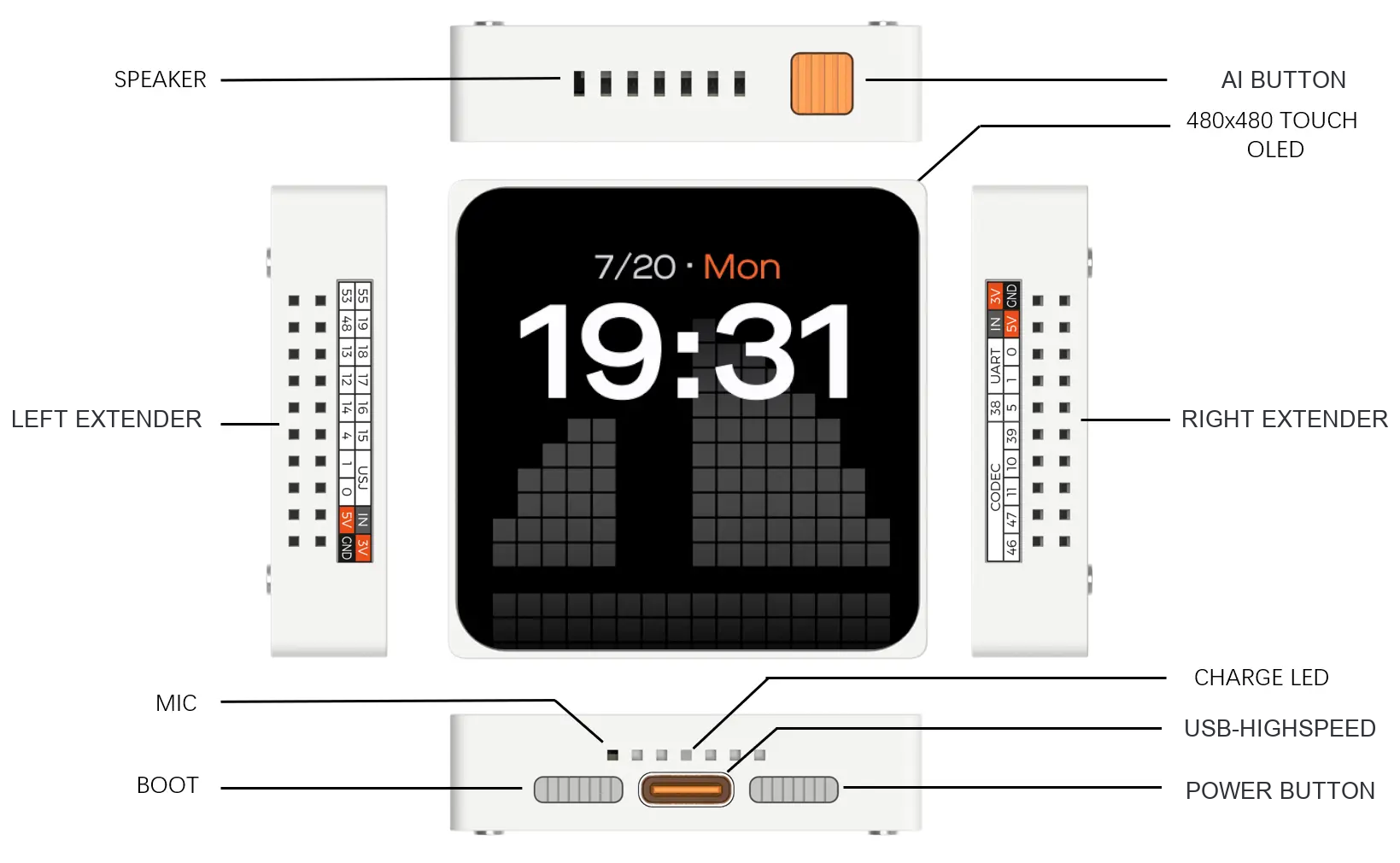
Button reference
| Button | Action | Function |
|---|---|---|
| Power Button | Short press | Power the device on or off. |
| AI Button | Short press | Go back or enter sleep mode. |
| Button combination | With the device off, hold AI Button, then short-press Power Button | Open the Vibe Mode home screen. |
Charging indicator
An orange light means charging; a white light means fully charged.
Expansion modules
ESP-Mosaico supports different peripherals through expansion modules. Check the slot and orientation before inserting one.
The Camera Module can only be used in the left-hand slot. Make sure the connector is facing the correct direction.
↳ Expansion module insertion direction — make sure the connector is aligned before powering on.
Enter Vibe Mode
Press the Power Button on the bottom-right side of the device to turn it on. The device will enter Vibe Mode, where you can install and manage all Ideas on ESP-Mosaico.

Open Manage page to install or uninstall Ideas. Swipe right to view your installed Ideas.
To return to Vibe Mode after installing an Idea, power off the device. Hold AI Button, then short-press Power Button.
If you cannot enter Vibe Mode, please update the factory firmware.
Chat Coding
To start Chat Coding, enter Vibe Mode, then install or open the Mosaico-Claw Idea.
Start a conversation
Before you begin, make sure:
- Wi-Fi has been configured.
- WeChat or another supported platform has been bound to ESP-Mosaico.
- ASR and LLM services are available.
- The device screen is working normally.
01 Send text in WeChat
Open the WeChat conversation bound to ESP-Mosaico and type a request.
Introduce yourself briefly.
Remind me to drink water every 30 minutes.
02 Use voice input on ESP-Mosaico
From the Chat Coding Idea home screen, open Claw, press and hold the input field, and say what you want it to do.
Claw's six built-in skills
| Mode | Skill | Purpose | Example |
|---|---|---|---|
| Quick Ask | ai_create_quick | Answer one clear question quickly. | "If every choice is determined by the past, does free will still exist?" |
| AI Create | skill_creator | Create or update device features, workflows, skills, or Lua automations. | "Draw a small rotating flower on the screen for 30 seconds." |
| Install Skill | skills_lab_search | Search ESP-Claw Skills Lab for a skill suited to ESP-Mosaico and guide you through installation. | "Find me a weather skill." |
| Remember | memory_ops | Save, find, update, or delete the device's long-term memories. | "Remember that you are now a plant-care specialist for my home garden." |
| Plan | plan_mode | Analyze a complex goal, check hardware and capability requirements, and produce an actionable plan. | "I want to turn ESP-Mosaico into a servo robot. Plan the fastest way to build it." |
| Schedule | cap_scheduler | Create and manage one-time, recurring, or Cron-scheduled tasks. | "Turn on the expansion light board at 8 PM every evening." |
Control panel
In the Chat Coding Idea, open Settings > AI Model. An IP address appears on the screen. Open this address on a phone or computer connected to the same local network.
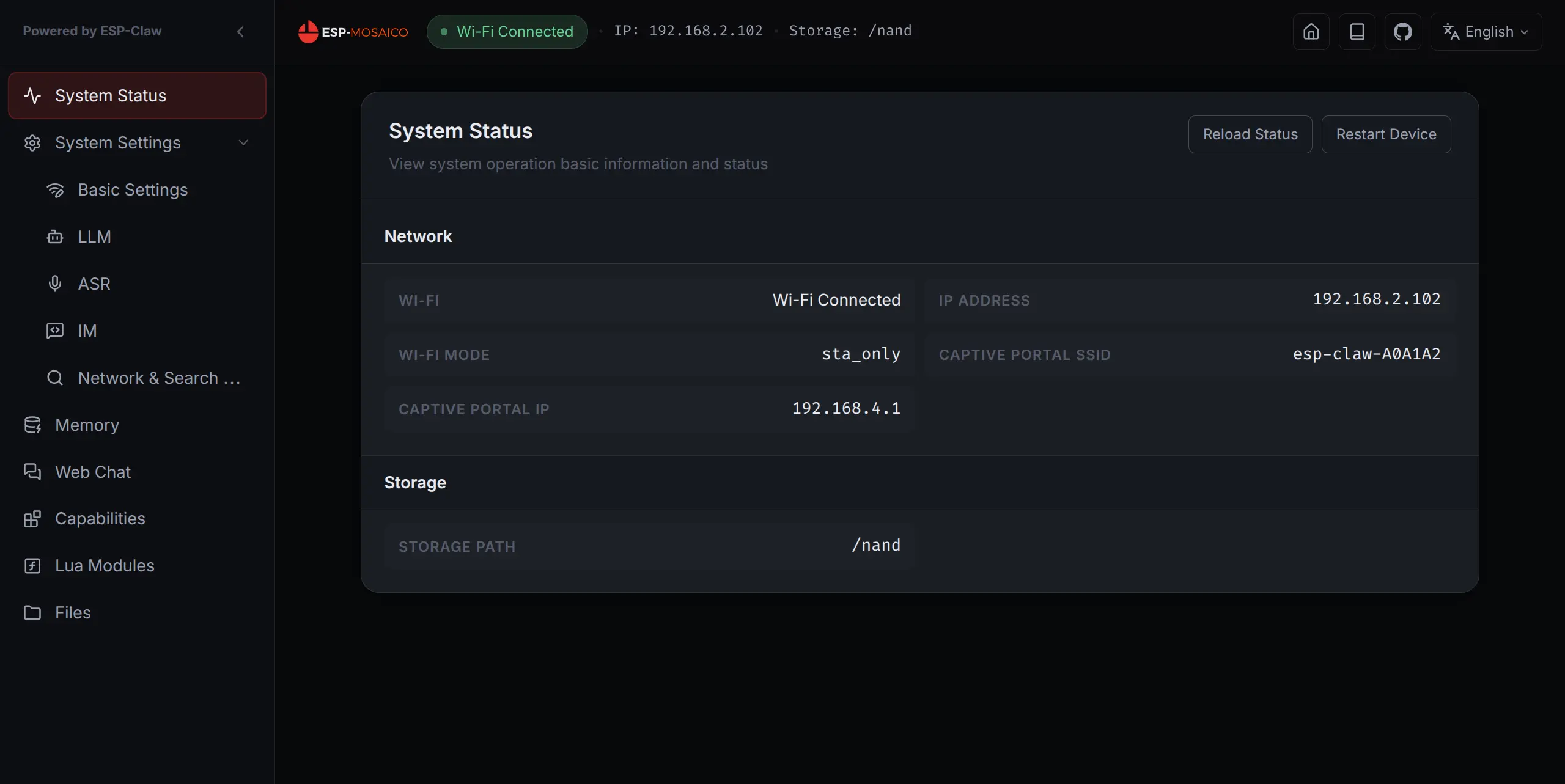
The control panel is typically used to:
- View or change Wi-Fi settings
- Configure LLM services
- Configure ASR services
- Configure network API services
- View device status
- Adjust skills and Lua options
- Chat online
Restart after changes: manually restart ESP-Mosaico after changing settings in the control panel.
Factory settings include ASR and LLM keys for basic questions and simple programming. If the included quota runs out, or you want stronger coding results, configure your own model credentials in the control panel.
Manage skills in Work
Work stores skills completed by the Agent. When Chat Coding or another workflow helps you create a feature, save it to Work so you can run it again or keep improving it.
- Save a skill: Save the completed feature to Work.
- Run it again: Open and reuse a saved skill.
- Keep improving: Refine the skill in later conversations.
Vibe Coding
Vibe Coding is designed for building your own ideas from scratch. On a PC, pair an AI coding Agent with the ESP-Mosaico emulator, debugging tools, and a physical device to create more ambitious embedded applications.
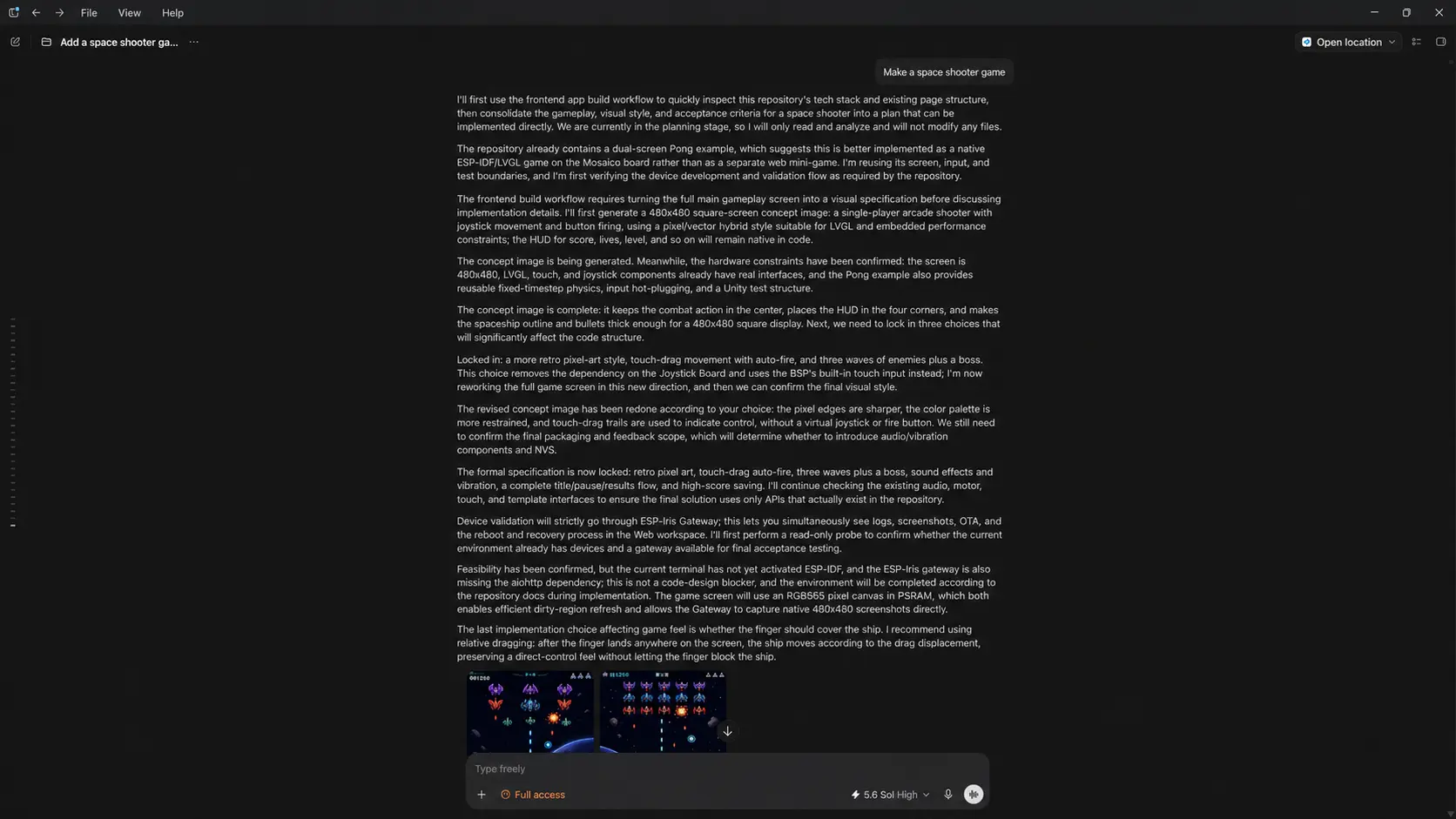
What you need
Prepare an AI coding Agent on your PC, such as:
- Codex
- Claude Code
- OpenCode
- Trae
You will also need a USB data cable to connect ESP-Mosaico to your PC.
Give the Agent a task
Use the esp-mosaico-vibe repository. It contains the documentation and examples the Agent needs. Try this prompt:
Download the code from this repository: https://github.com/esp-mosaico/esp-mosaico-vibe Set up the environment and implement a Snake game.
The repository URL lets the Agent fetch the code, configure the environment, and implement the game.
Iterate on the result
After the Agent finishes the first version, use what you see on the device or emulator to guide the next change:
The snake moves too quickly. Slow it down and add a pause function.
Add a start screen and a game-over screen.
Let the AI Button return to the main menu.
Tips
- Use Plan Mode. Vibe Coding depends on shared understanding. When a request is difficult to express all at once, ask the Agent to restate its understanding in Plan Mode, then correct it before implementation.
- Prototype the UI in the ESP-GSP emulator. Validate the layout, interaction logic, and visual result before flashing to the physical device.
- Use debugging tools for multimodal tests. The repository tools can capture the screen and support interactive testing.
Hardware development
Expansion I/O
| Interface | Description |
|---|---|
| IN | 5 V input for powering ESP-Mosaico from an external supply. |
| 5V | 5 V output, up to 100 mA. |
| 3V | 3.3 V output, up to 100 mA. |
| USJ | USB-Serial-JTAG; can be initialized as general-purpose GPIO. Pin order on the board: 3V, IN, DP (IO34), DN (IO33), IO15. |
| UART | UART; can be initialized as general-purpose GPIO. Pin order on the interface: 3V, IN, TX (IO58), RX (IO59), IO38. |
| CODEC | Can only be used as general-purpose I/O when the internal ES8311 is disabled. |
Hardware documentation
For detailed hardware resources, see the ESP-Mosaico hardware documentation.
FAQ
Please refer to FAQ.
Glossary
| Term | Meaning |
|---|---|
| ESP-Mosaico | A development device for AIoT and embedded creation. |
| ESP-Claw | The on-device Agent running in ESP-Mosaico's factory firmware. |
| Vibe Mode | The device mode for Vibe Coding and managing Ideas. |
| Idea | An application installed through Vibe Mode. |
| Chat Coding | An experience where you describe a request by chat or voice and the Agent generates and runs code. |
| Vibe Coding | A development approach that uses an AI coding Agent to build a creative project from scratch. |
| Work | The area where completed Agent skills are stored. |
| Agent | An AI system that understands requests, generates code, calls tools, and helps complete tasks. |
| ASR | Automatic speech recognition, used to convert speech to text. |
| LLM | Large language model, used to understand requests, generate answers, or write code. |
| Download mode | The device mode used to flash firmware or download programs. |
| ESP-GSP emulator | A PC tool for quickly validating ESP-Mosaico UI prototypes and interactions. |