


Hello, Mosaico
The first stop to get to know the Mosaico device.
"Hello, Mosaico" is an introductory experience app for the device. Light up the LEDs, touch the sensor area, tilt the device to observe the ball, then try camera preview, motion detection, and red‑green‑blue block detection, and learn each function through on‑screen feedback.
What you can experience
- Camera Exploration: camera preview, motion detection, red‑green‑blue block detection with fill‑light; shows front/rear status, front camera defaults to horizontal mirror.
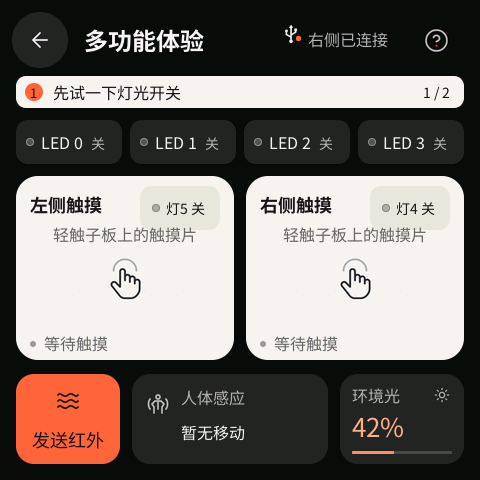
- Perceptual Interaction: control six RGB LEDs, view left/right touch, ambient light and human presence status, send infrared test signal.
- Tilt Ball: tilt the device forward/backward or left/right, the ball moves toward the lower side, tap to recenter.
- Sound and Buttons: play a prompt tone, record and playback up to 3 seconds of audio, get familiar with the top AI button and the bottom‑left BOOT button.
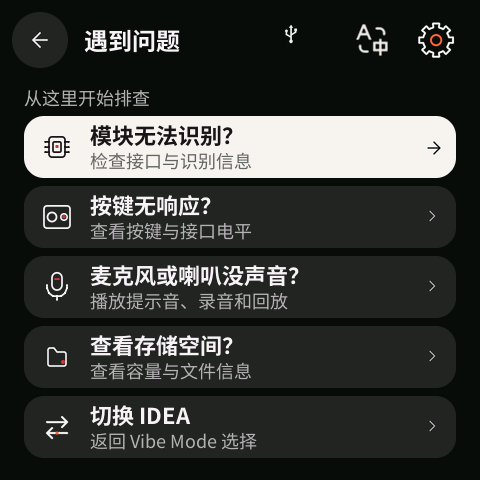
- Settings and Help: adjust brightness, volume and power‑saving mode, switch between Chinese and English; when module connection issues arise, follow on‑screen prompts to troubleshoot.
Required hardware
Compatible with ESP-Mosaico. Camera functions require a camera module, perceptual interaction functions require an interaction module; even without any expansion modules you can still experience the tilt ball, sound, and device buttons.
First use
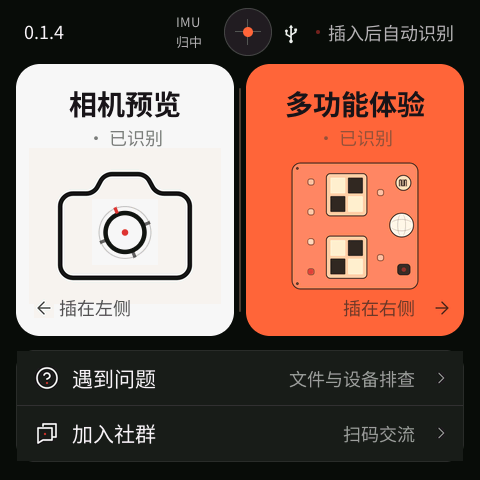
- Insert the camera into the left port and the interaction module into the right port; the device will recognize them automatically.
- Tap "Camera Preview" or "Multi‑function Experience" on the home page and follow the on‑screen prompts to start exploring. On the home, camera, or multi‑function pages, you can also press any button on the right‑hand interaction module to enter the multi‑function mode, or flip the front/rear lens to open the camera.
- Press the top AI button to return to the home page; press it again on the home page to turn off the screen; press the bottom‑left BOOT button to open Settings.
The interface supports Chinese and English and can be switched in Settings or the "Troubleshooting" page. Camera detection is recommended in well‑lit environments.
0.1.4 Update
- Added direct button access to the multi‑function mode and flip‑lens opening of the camera; Settings, Help, and recording actions are no longer interrupted by automatic page switches.
- Added front/rear status, front camera horizontal mirroring, and a ~1.5 second auto‑retracting bar switch hint.
- Fixed flickering when entering and returning from pages, unified loading prompts, and improved response speed when re‑entering the multi‑function experience.
- Refined the icons for left/right Touch/Key and the press‑and‑release feedback.
- Supports stopping a recording early and playing back the recorded audio.
- Power‑saving mode retains the current brightness and automatically restores it upon exit.
- After the current IDEA is successfully saved to device storage, the next startup will re‑select the language; the current session continues using the already selected language.
Known issue: some devices may exhibit display anomalies or reboot on startup; investigation ongoing.
Interface preview
Below are mock‑ups of the Chinese interface; sensor readings are demonstration data.
Comments (0)